DispMini on the iMac: user guide
DispMini runs on your iMac, or on another Mac you use as a display, and shows the picture from DispMiniSender fullscreen. The app is called DispMini in the menu bar, the Dock and Finder; its download is DispMiniReceiver. If you haven't set it up yet, start with the setup guide.
The main window

- This Display: the iMac's model and screen size. DispMiniSender creates its virtual display to match these. If the model isn't recognized, a warning appears and the picture may not line up with the screen.
- Start Listening and Stop: DispMini waits for a Mac while it's listening. By default it starts listening when it opens.
- Enter Fullscreen: shows the picture fullscreen again after you've left fullscreen.
- Updates: when a new version is available, Install and Relaunch appears here. It isn't shown while the picture is fullscreen.
- Settings: the gear button opens the settings window.
- Help: Help → DispMini Help, or
Cmd+?, opens this guide.
The waiting screen
While no picture is showing, the window shows Waiting for picture… and a list of DispMini Macs with their status. Click a Mac to show it here. If another Mac is showing, it lets go first.

| Status | Meaning |
|---|---|
| Online · Idle | Ready. Click it to show it here. |
| Online · Busy | It's showing on another display. |
| Showing here | This Mac's picture is on this display. |
| Asleep · Click to wake | The Mac is asleep. Click it to wake it. |
| Offline or asleep | Not reachable right now. |
| Pair on that Mac first | The two Macs aren't paired yet. See how to pair. |
| Pair again on that Mac | It was removed from Paired Macs, so it has to pair again. |
The waiting screen also helps after the Mac mini restarts. Log In with Screen Sharing appears when it's waiting at the login window, and Unlock … in Terminal… when FileVault is waiting for its disk to be unlocked. See how to log in after a restart.
Fullscreen
When the picture arrives, DispMini goes fullscreen in its own Space.
| To do this | Do this |
|---|---|
| Switch to the iMac's own desktop | Swipe left or right with four fingers on a trackpad or two on a Magic Mouse, or press Ctrl+← or Ctrl+→ |
| Exit fullscreen | Press Ctrl+Option+Esc |
| Show or hide live stats | Press Ctrl+Option+D |
A plain Esc goes to the Mac mini when you control it with the iMac's keyboard, because many apps need it.
Shortcuts while you control the Mac mini
With Allow controlling the Mac mini with this Mac's mouse and keyboard on, the iMac's own menu bar and Dock stay hidden in fullscreen, so the menu bar and Dock you see and click are the Mac mini's.
| To do this | Do this on the iMac |
|---|---|
| Show the iMac's menu bar or Dock | Hold Ctrl+Option and move the pointer to the top or bottom of the screen. It stays until the pointer moves away. |
| Switch the Mac mini's desktops | Press Ctrl+Option+← or Ctrl+Option+→ |
| Open Mission Control on the Mac mini | Press Ctrl+Option+↑ |
| Show the front app's windows on the Mac mini | Press Ctrl+Option+↓ |
| Open Spotlight on the Mac mini | Press Ctrl+Option+Cmd+Space |
Swiping with four fingers and Ctrl+← or Ctrl+→ still switch the iMac's own desktops, and Cmd+Space opens the iMac's Spotlight. The iMac uses these before DispMini sees them, so DispMini uses Ctrl+Option shortcuts for the Mac mini instead.
Settings
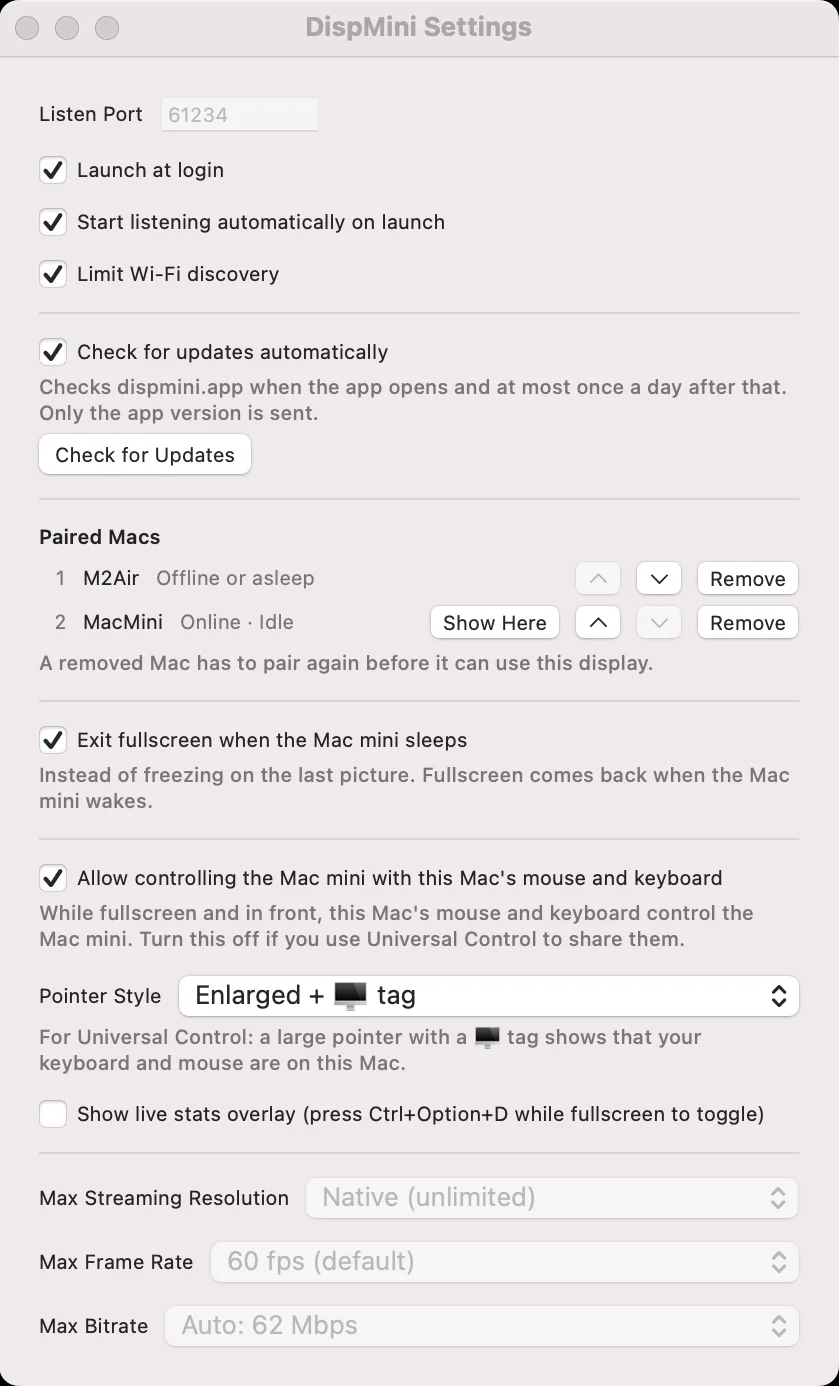
| Setting | What it does | Default |
|---|---|---|
| Listen Port | The network port DispMini listens on. Change it only if another app uses the same port. Stop listening first. | 61234 |
| Launch at login | Opens DispMini when you log in to the iMac. | Off |
| Start listening automatically on launch | Starts waiting for a Sender as soon as the app opens. | On |
| Limit Wi-Fi discovery | The Screen Sharing login button only finds Macs connected by cable. Turn it off if your Macs are only on Wi-Fi. Unlocking FileVault never uses Wi-Fi. | On |
| Check for updates automatically | Checks dispmini.app when the app opens and at most once a day after that. Only the app version is sent. Check for Updates checks right away. | On |
| Exit fullscreen when the Mac mini sleeps | Leaves fullscreen instead of freezing on the last picture. Fullscreen comes back when the Mac mini wakes. | Off |
| Allow controlling the Mac mini with this Mac's mouse and keyboard | While the picture is fullscreen and in front, the iMac's keyboard and mouse control the Mac mini. The Mac mini needs Accessibility permission. Turn it off if you use Universal Control instead. | Off |
| Pointer Style | How the iMac's own pointer looks over the picture: System default, Enlarged arrow, Enlarged + colored or Enlarged + 🖥️ tag. Made for Universal Control: the tag shows that your keyboard and mouse are on the iMac. | Enlarged + 🖥️ tag |
| Show live stats overlay | Shows frame rate, bitrate and other numbers in a corner while fullscreen. | Off |
| Max Streaming Resolution | Caps the picture size: Native, Up to 4K, Up to 1440p or Up to 1080p. | Native (unlimited) |
| Max Frame Rate | 60, 48, 30 or 24 frames per second. | 60 fps |
| Max Bitrate | Caps how much data the picture uses: Auto, 80, 60, 40, 25 or 15 Mbps. Auto is worked out from the screen size and is never below 40 Mbps. | Auto |
Paired Macs
Settings also lists the Macs you've paired, numbered in the same order as the waiting screen. Only paired Macs can use this display. A Mac with an older version of DispMiniSender can't connect until it's updated and paired.
- Show Here shows that Mac on this display, and Wake wakes it if it's asleep.
- Move Up and Move Down change the order.
- Remove forgets a Mac. It has to pair again before it can use this display.
When to change the streaming limits
Leave them at their defaults unless something looks wrong. You need to stop listening to change them, and the Sender reconnects afterward.
- An older iMac can't keep up, or a Software decoding warning appears: lower Max Frame Rate first. It keeps text sharp. Lower the resolution only if that isn't enough, because it makes the picture softer.
- White smears while scrolling fast, or soft text: each frame doesn't have enough data. Raise Max Bitrate, or lower the frame rate.
- Stutter over Wi-Fi: lower Max Bitrate, or use a cable.